Library sync
A private Cloud for each Mac.
Captures go up sealed on the Mac that took them. Our servers keep only what nobody can open.




- AES-256-GCM, a fresh key for every capture
- AES-256
- Security keys for each Mac’s Cloud
- 5 keys
- In Recently Deleted
- 30 days
- The largest capture
- 500 MB
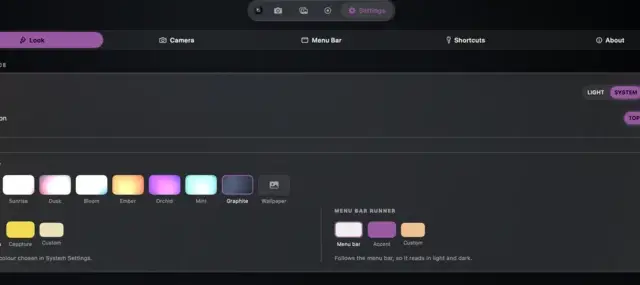
Each Mac keeps its own Cloud. Turn it on in Settings › Cloud, Mac by Mac. Other Macs on your licence can’t see what it holds, and we can’t open it.
Five keys. No reset.
Turning Cloud on makes five security keys, shown once on that Mac. Any one of them brings its Cloud back after a reinstall, or on the Mac that replaces it. There is no reset, by design: lose every Mac and every key, and nobody can open it. Not even us.

Recently Deleted, for 30 days
Delete a capture and it waits there, still sealed. Put it back, or let it go for good after thirty days.
A team shares one library
On a team’s licence, a Mac joins with a security key and syncs once the team’s main Mac approves it.
Questions
What if I lose a Mac?
Any one of that Mac’s five security keys brings its Cloud back on the Mac that replaces it. After a reinstall, the same Mac opens it again with one.
What if I lose every Mac and every key?
Then nobody can open that Cloud, us included. There is no reset, because a reset would mean we had a way in. That is why there are five keys.
Can you see what my captures are called?
No. Each capture’s name, kind and the time it was taken are sealed with it. We see sizes, an id that means nothing, and when it was uploaded.
Is it on by default?
No. Cloud is off until you turn it on in Settings › Cloud. Without it, everything stays on your Mac as it does today.
Does Recently Deleted count toward my storage?
Yes, until it is emptied or its thirty days pass. Every licence comes with 5 GB of Cloud, and more is there when you need it.